A supportive chair is a useful starting point for long workdays because it lets you change position without straining to reach the desk. Look for adjustable seat height so feet can rest flat on the floor or footrest while knees sit near hip level. Lumbar support should meet the inward curve of the lower back; adjustable depth or firmness can make it easier to fit different body shapes. Armrests can support forearms with shoulders relaxed, provided they slide under the desk and do not force elbows outward. Breathable fabric or mesh may improve comfort by allowing heat and moisture to disperse during sitting.
If your chair or desk lacks useful adjustment, accessories can help adapt the setup. A firm cushion may raise the seating surface or add padding, but it should not make the seat so high that your feet dangle. A footrest provides a stable surface when the chair must be raised to reach the desk; choose one that allows feet to rest rather than forcing them forward. Check that added support leaves room for knees and does not tilt your pelvis awkwardly. Cushions and footrests are fit tools, not guaranteed solutions for pain or substitutes for medical advice.
For relaxed sitting, position yourself close enough to the desk that you can work without leaning forward. Keep feet supported, hips toward the back of the seat, and lower back in contact with the chair’s lumbar area. Let shoulders drop, keep elbows near your sides, and adjust screen and keyboard placement so your arms do not reach or hunch. There is no single ideal arrangement for everyone: body proportions, tasks, and workstation height all matter. Test adjustments in small increments and notice whether the position feels easy to maintain. Even a carefully selected chair cannot replace regular movement; brief standing or walking breaks can vary posture throughout the day.
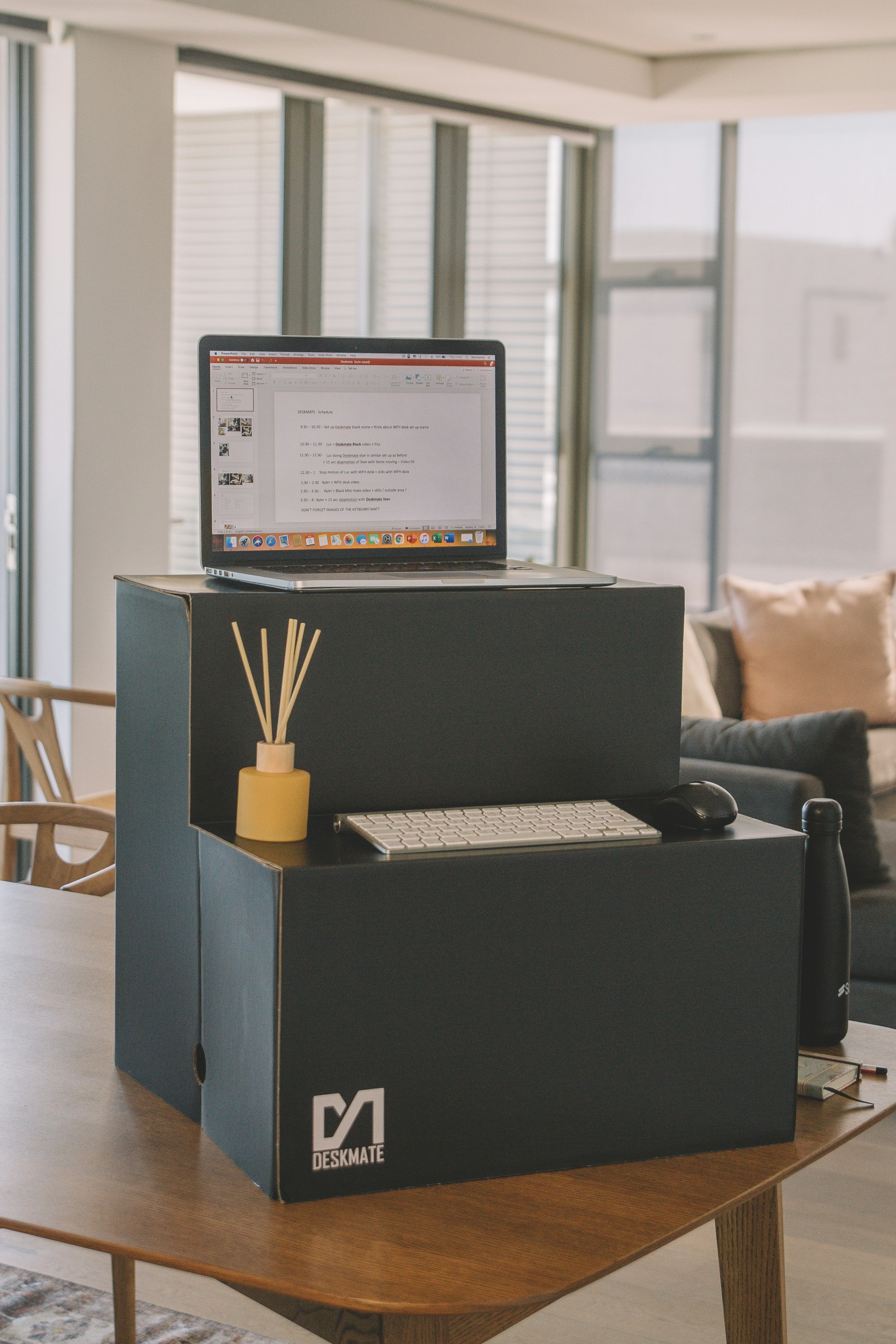
A comfortable workstation begins with placing the screen at a height and distance that let you look ahead without repeatedly bending your neck. A monitor stand can raise a desktop display, while a laptop riser can bring a portable computer closer to eye level. When the screen sits too low, it is easy to hunch or tilt the head downward for long periods. Raising it can encourage a more upright position, although the best height depends on your posture, vision, and the work you are doing. Aim for a relaxed, natural gaze rather than a rigid rule, and adjust the screen if you notice strain.
Raising a laptop usually means its built-in keyboard and trackpad are also elevated, so they may no longer be comfortable to use. An external keyboard and mouse can solve this problem by letting you position your hands separately from the screen. Keep both devices within easy reach, with shoulders relaxed and elbows resting near your sides at a comfortable angle. Avoid stretching forward or lifting your shoulders to type or point. If you use a desktop computer, check whether its keyboard and mouse can be moved closer before adding accessories; small changes to their placement may be enough to improve comfort.
A document holder can help when your tasks involve frequent reading or copying from printed pages. Place it near the screen, ideally at a similar height and viewing distance, to limit repeated twisting or looking down. Choose accessories to suit your setup: a compact riser may work better on a small desk, while a larger surface can accommodate a separate keyboard, mouse, and papers. For occasional laptop work, a few stable books may raise the screen temporarily, provided the computer remains secure and ventilated. Reassess the arrangement as tasks change, and make adjustments when switching devices. Specialized equipment is not essential; correct positioning and a setup that supports relaxed movement matter more than the products you buy.
A task lamp provides focused light for reading, writing, and close-up work, while adjustable room lighting helps maintain comfort as daylight changes. Choose a model with a movable head or flexible arm so its beam can be directed onto paperwork without illuminating the screen. A dimmer or several brightness settings are useful because a level that feels comfortable at midday may seem harsh in the evening. The aim is enough light to see clearly without making your eyes work harder.
Position the lamp beside or behind your monitor, directing light toward the desk rather than the display. This reduces reflections and bright spots that can make screen text difficult to read. If you write with one hand, place the lamp on the opposite side when possible, limiting shadows cast by your arm. Adjust blinds or curtains to control daylight, and shift your screen or chair if windows create glare. Keep the room moderately lit as well: a very bright screen in a dark space, or a dim screen in a bright room, can feel uncomfortable. Match screen brightness to the surrounding light and adjust it when conditions change.
Sound accessories can make a home workspace calmer and more practical. Headphones may help reduce household noise during focused tasks, while a headset with a microphone can make calls easier by keeping your hands free and your voice clear. Choose equipment that fits comfortably for the length of time you expect to wear it. Lightweight designs, soft ear cushions, and an adjustable headband can help prevent pressure or heat from becoming distracting. If possible, try a headset before relying on it for long meetings.
Listening habits matter alongside fit. Keep audio at a moderate level, particularly when wearing headphones for extended periods, and take breaks to give your ears a rest. Noise-cancelling features can reduce the temptation to turn up volume in a noisy room, but they may also make it harder to notice nearby sounds. Select the setting that suits your task and environment. Together, thoughtful lighting, glare control, and comfortable sound accessories can support a workspace that feels easier to use throughout the day.
Small conveniences can remove recurring frustrations without turning a desk into a collection of gadgets. A desk mat creates a defined work surface, helps keep a keyboard and mouse in place, and may protect the desktop from scratches or spills. Choose a size that fits your usual setup while leaving room for writing or other tasks. Cable clips guide charging leads along an edge, while a cable tray can conceal power strips and excess cord length beneath the desk. Either option can make cleaning easier and reduce tangles; select one based on how many cables you actually use.
A water bottle kept within reach makes it easier to drink regularly, especially during long stretches of focused work. Pick a stable, easy-to-clean design that fits your desk and does not crowd frequently used items. A compact organizer can hold pens, sticky notes, chargers, or other small supplies in one accessible place. Rather than adding several containers, identify the items that tend to migrate across your workspace and give those a designated home. A timer or simple break reminder can also support a healthier routine by prompting you to stand, stretch, or rest your eyes at intervals that suit your work. These tools are most useful when they fit naturally into your day; reminders should be adjustable, not another source of interruption.
Choose accessories by addressing real needs, not by following a checklist. First, notice where discomfort, clutter, or delays interrupt your work: perhaps cords catch on your chair, supplies are hard to find, or you forget to take breaks. Then check measurements and compatibility, including desk space, cable routing, and whether an organizer accommodates the items you own. Set a modest budget and prioritize the one or two changes likely to make the biggest difference. Introduce them gradually, allowing time to see whether each item improves your routine before buying more. This practical approach keeps the workspace functional, comfortable, and uncluttered.